

Knowledge base
How it works, in one picture
Loading diagram...
You do not run any of these steps yourself.
Create a knowledge base
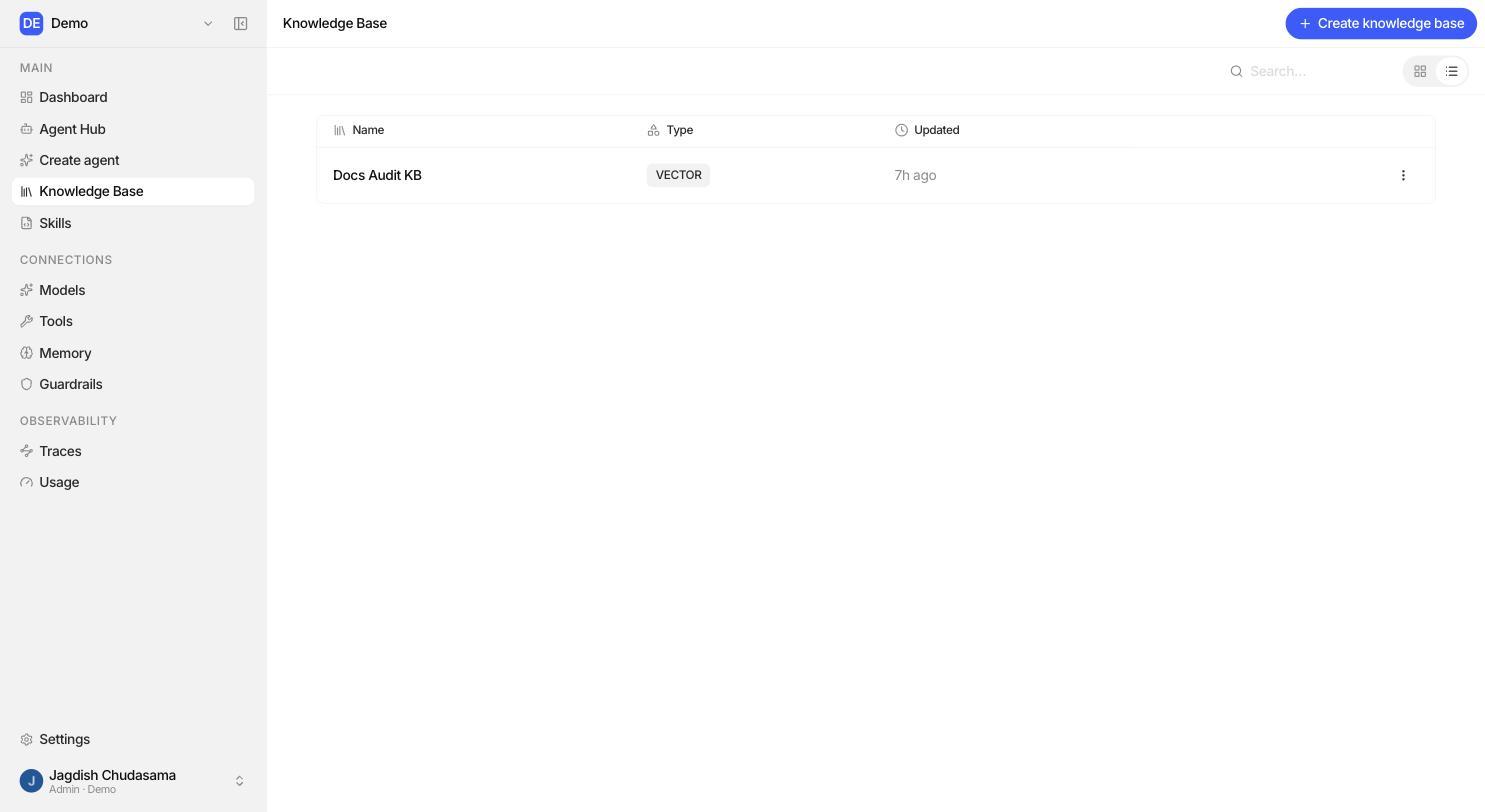
- Sidebar → Knowledge Base.
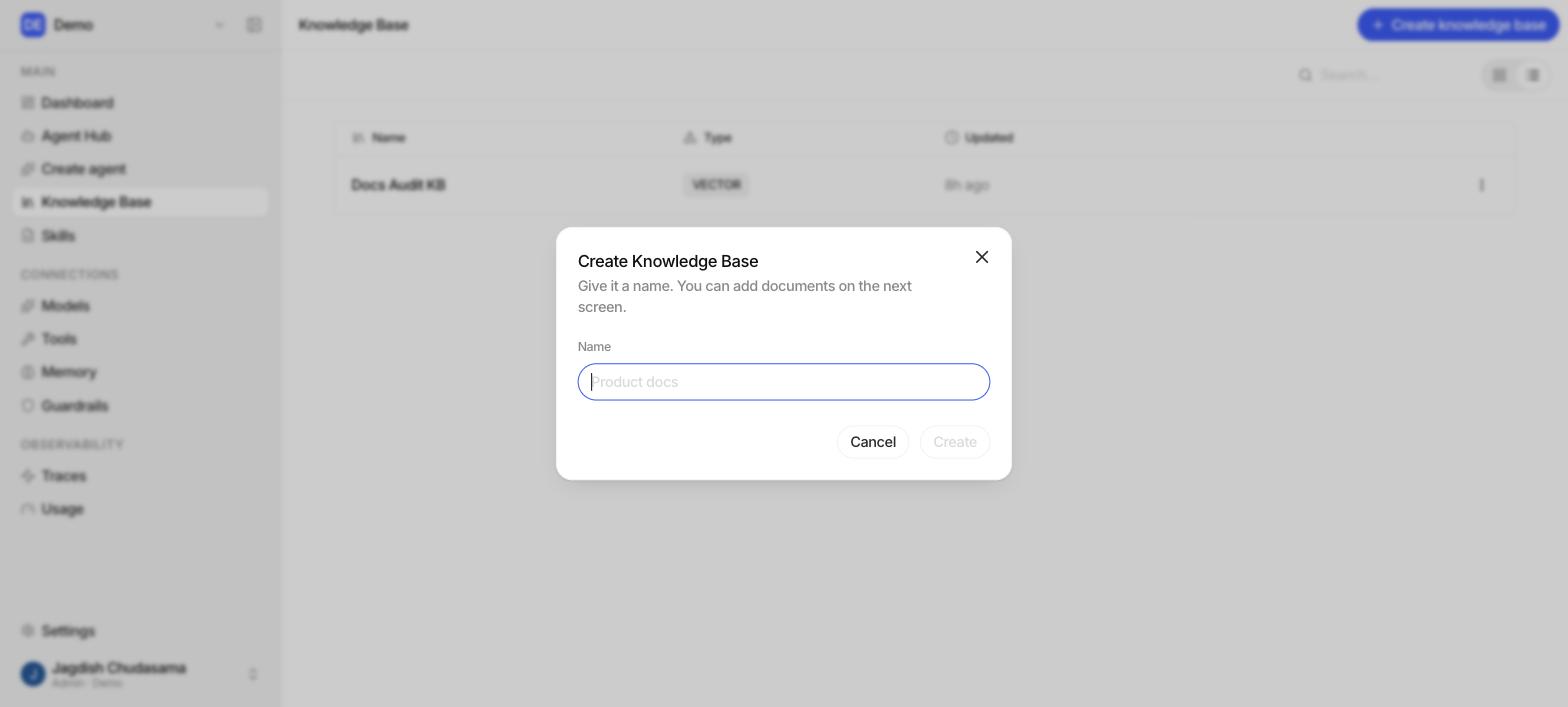
- Create a knowledge base. Give it a name, then click Create.
- You land on the knowledge base page, where you upload documents.
Supported files
| Type | Notes |
|---|---|
| Including scanned PDFs. Text is extracted for you. | |
| DOCX / DOC | Word documents. |
| TXT | Plain text. |
| MD | Markdown. |
Drag files onto the upload area or click it to pick them. Up to 20 files at a time.
Document status
Each document moves through these states. You can watch it happen.
| Status | Meaning | Searchable? |
|---|---|---|
| Uploading | The file is transferring. | No |
| Uploaded | Stored, queued for processing. | No |
| Processing | Being parsed, chunked, embedded and indexed. | No |
| Ready | Done. Agents can find it. | Yes |
| Failed | A stage failed. The stage that failed is shown. | No |
Attach it to an agent
- Open the agent → Knowledge section.
- Add knowledge and pick one or more knowledge bases.
You need Editor on the agent and at least Viewer on the knowledge base.
Once attached, the agent searches it automatically when a question calls for it. You do not need to tell it to.
How search behaves
- Each attached knowledge base contributes up to 5 passages per question by default.
- Results come back with the document they came from and the page range, so answers can be traced back to a source.
- Search is strictly scoped to your organization. That boundary is enforced on every query, and it is not something a prompt or a tool argument can influence.
When a knowledge base returns nothing
A knowledge base is only searchable when all of these are true:
- It is a vector knowledge base (the default).
- It has a vector store configured.
- Its embedding model is one Studio can query.
- At least one document has reached Ready.
If one of these fails, the agent is simply not offered that knowledge base, rather than being handed a search that always comes back empty.
Sharing
Same three levels as everywhere else:
| Level | Can |
|---|---|
| Viewer | Read documents, search, attach it to agents they can edit. |
| Editor | Upload, delete and retry documents; rename the knowledge base. |
| Admin | Delete the knowledge base and share it. |
Good practice
| Do | Why |
|---|---|
| One knowledge base per topic | Sharper retrieval, and you can attach only what an agent needs. |
| Keep documents current | An outdated policy will be quoted confidently. |
| Prefer text-native files | A clean DOCX beats a photographed PDF. |
| Use descriptive filenames | They appear in citations and traces. |
| Delete superseded versions | Two versions of one policy is the most common source of contradictory answers. |