On this page
- How Do You Give an AI Agent a Computer?
- Why Does a Computer Use Agent Need Its Own Machine?
- What is Inside the Agent's Computer?
- How Do You Boot a Desktop Sandbox for an Agent?
- How Does the Agent See and Control the Screen?
- What Does It Look Like When a Model Drives the Computer? A Recorded Demonstration
- How Do You Watch the Agent Work?
- What Does the Agent's Computer Cost?
- How Do You Clean Up?
- Common Questions
- About CreateOS
- Next Step
How do you give an AI agent a computer?
You give a computer use agent a computer by booting a disposable desktop VM per task, exposing screenshot and input primitives to the model over an API, and destroying the VM when the task ends. The model supplies the reasoning loop. You supply the machine it looks at and touches.
On CreateOS Sandbox that is one API call. The desktop:1 image boots a Firecracker micro-VM running Ubuntu 24.04, an XFCE desktop on a 1280 × 800 virtual display, Google Chrome, and a computer API for screenshots, mouse, keyboard, windows and clipboard. We timed it on 2026-09-10 over the REST API: 2.1 to 4.1 seconds from the create call to a running desktop, and 86 to 228 milliseconds per screenshot round trip once the first capture has warmed up.
This guide is the part the definitions leave out: provisioning the computer, sizing it, wiring it to Claude's or OpenAI's action set, watching it live, and paying for it.
Why does a computer use agent need its own machine?
A computer use agent reads screens and acts on what it sees, so whatever it can see and click, it can be tricked into clicking. Both model vendors say to isolate it.
- Anthropic's computer use tool documentation lists "Using a dedicated virtual machine or container with minimal privileges" first among its precautions (Anthropic docs).
- OpenAI's computer use guide says "Use an isolated browser or VM and an allow list of sites and actions" (OpenAI docs).
Sharing your laptop or a long-lived server with the agent fails both tests. A page the agent visits can contain instructions. If the agent has your browser sessions, your SSH keys and your network, a prompt-injected agent has them too. We cover the credential and network side in browser sandboxes for computer-use agents; this post covers the machine itself.
A VM per task also fixes the operational problem. State from one run never leaks into the next, and a stuck agent is a DELETE call, not a support ticket.
What is inside the agent's computer?
The desktop:1 root filesystem is a complete graphical Linux machine, not a headless browser. This is what we found inside a freshly booted sandbox.
| Component | What is running |
|---|---|
| OS | Ubuntu 24.04 LTS, own guest kernel (Firecracker micro-VM) |
| Display | Xvfb virtual display, 1280 × 800 by default, up to 8 screens (screen-0 to screen-7) |
| Desktop | XFCE session with panel, window manager and file manager |
| Browser | Google Chrome, launched as an unprivileged desktop user so Chrome's own sandbox stays on |
| Remote view | x11vnc bound to localhost, websockify plus noVNC on port 6080, token-gated |
| Input tools | xdotool, wmctrl, scrot, xclip behind the computer API |
| Agent CLIs | Claude Code, Codex CLI, OpenCode, Cursor Agent and Node.js 22 and Python 3.12 preinstalled |
The last row matters if your agent is a coding agent that also needs a screen: the same VM can run Claude Code in a terminal and Chrome on the desktop, with one egress policy over both.
Two design details are worth knowing. Computer API calls enter the VM as root, but the browser launcher drops to the desktop user before starting Chrome, so the browser's namespace sandbox is not disabled the way it is when you run Chrome as root with --no-sandbox. And the noVNC endpoint is public HTML, but the VNC stream behind it only opens with a token that the API mints per connection; without the token you get a directory listing and nothing else.
How do you boot a desktop sandbox for an agent?
Create a sandbox with the desktop:1 image and a shape of at least 1 vCPU / 1 GB, then wait for status: running. Everything below uses the Computer API reference; the base URL is https://api.sb.createos.sh and authentication is an X-Api-Key header.
curl -s https://api.sb.createos.sh/v1/sandboxes \
  -H "X-Api-Key: $CREATEOS_API_KEY" -H "Content-Type: application/json" \
  -d '{
    "shape": "s-1vcpu-1gb",
    "rootfs": "desktop:1",
    "egress": ["createos.sh", "*.createos.sh"],
    "auto_pause_after_seconds": 1800
  }'
Three fields deserve a sentence each.
rootfs: "desktop:1". The minimal images (alpine,debian,ubuntu) and thedevbox:1coding image have no display. The computer endpoints return409on them.egress. With no rules the sandbox can reach the whole internet. With any rule it is deny-by-default and the rules are enforced in the host kernel, outside the VM, so the agent cannot loosen them from inside. Set the allowlist before the first screenshot. Details in the egress allowlist docs.auto_pause_after_seconds. An agent waiting on a human approval does not need to burn compute. Pause stops billing for CPU and memory and keeps the desktop state for resume.
The response carries the sandbox id and spawn_ms. Across our runs it read between 2055 and 4139.
How much memory does a computer use agent need?
One gigabyte is the floor for a desktop with Chrome; four is comfortable. We measured it rather than guessing.
| Shape | Free memory before Chrome | After opening one page in Chrome | Verdict |
|---|---|---|---|
| 1 vCPU / 256 MB | 52 MB | Chrome cannot start | Desktop boots, browser does not |
| 1 vCPU / 1 GB | 685 MB | 293 MB free, 688 MB used | Works for one tab and one app |
| 2 vCPU / 4 GB and up | — | — | Recommended for multi-tab or IDE work; needs a paid plan |
The 256 MB shape boots the XFCE desktop in 920 milliseconds, which is a nice number and useless for a browser agent. Note that the Free plan caps shapes at 1 vCPU / 1 GB; the 4 vCPU / 4 GB shape the SDK docs use as an example needs Beginner or above (plan limits).
How does the agent see and control the screen?
The agent loop is screenshot, decide, act, screenshot again, and every step is one HTTP call. All paths start with /v1/sandboxes/{id}/computer.
B="https://api.sb.createos.sh/v1/sandboxes/$SANDBOX_ID/computer"
H="X-Api-Key: $CREATEOS_API_KEY"

# 1. Open a URL on the desktop (returns as soon as the launch is accepted)
curl -s -X POST "$B/open" -H "$H" -H "Content-Type: application/json" \
  -d '{"target":"https://createos.sh/docs/Sandbox/REST-API/Computer/"}'

# 2. Look
curl -s "$B/screenshot" -H "$H" -o step-1.png

# 3. Act: focus the address bar, type, submit
curl -s -X POST "$B/keyboard/press" -H "$H" -H "Content-Type: application/json" -d '{"keys":["ctrl","l"]}'
curl -s -X POST "$B/keyboard/type"  -H "$H" -H "Content-Type: application/json" -d '{"text":"https://createos.sh/pricing/sandbox","delay_in_ms":10}'
curl -s -X POST "$B/keyboard/press" -H "$H" -H "Content-Type: application/json" -d '{"keys":["Return"]}'

# 4. Click at a coordinate the model chose from the screenshot
curl -s -X POST "$B/mouse/click" -H "$H" -H "Content-Type: application/json" -d '{"x":640,"y":300,"button":"left"}'

# 5. Read what the agent selected
curl -s -X POST "$B/keyboard/press" -H "$H" -H "Content-Type: application/json" -d '{"keys":["ctrl","c"]}'
curl -s "$B/clipboard" -H "$H"
We ran that exact sequence against a live sandbox. Chrome had the docs page rendered within 9 seconds of the open call, the typed navigation landed on the pricing page, and the clipboard came back with the page's opening copy. Screenshot round trips measured 86 to 228 ms for a 1280 × 800 PNG of 88 to 143 KB; the very first capture after boot took just under a second.
Two things we learned the hard way. Take the screenshot of the empty desktop before you open anything, so the model has a baseline. And when you need a specific window, list with the application filter (GET /windows?application=chrome) rather than the bare list: the bare list returns every X window, including one-pixel helper windows, without titles.
Desktop applications take time to appear. Check GET /windows or take a screenshot before sending input that assumes an app is ready; the open call is an acknowledgement that the launch was accepted, not a promise that the page has painted.
How do Claude's and OpenAI's computer use actions map to the API?
Every action either vendor's model emits maps to one or two endpoints, so one adapter serves both. Anthropic's current toolset is computer_toolset_20260801; OpenAI's computer tool sends click, double_click, drag, move, scroll, keypress, type, wait and screenshot.
| Anthropic action | OpenAI action | CreateOS endpoint |
|---|---|---|
screenshot, zoom |
screenshot |
GET /screenshot (optional x, y, width, height rectangle for zoom) |
left_click, right_click, middle_click |
click |
POST /mouse/click with button |
double_click, triple_click |
double_click |
POST /mouse/click with count |
left_click_drag |
drag |
POST /mouse/drag with from and to |
mouse_move |
move |
POST /mouse/move |
left_mouse_down, left_mouse_up |
— | POST /mouse/down, POST /mouse/up |
cursor_position |
— | GET /cursor |
scroll |
scroll |
POST /mouse/scroll with direction and amount |
type |
type |
POST /keyboard/type |
key, hold_key |
keypress |
POST /keyboard/press; keyboard/down and keyboard/up for holds |
wait |
wait |
sleep client-side, then GET /screenshot |
The adapter is a switch statement over the model's action name. Screen dimensions for the model's coordinate space come from GET /screen, which returned 1280 × 800 in our run.
What does it look like when a model drives the computer? A recorded demonstration
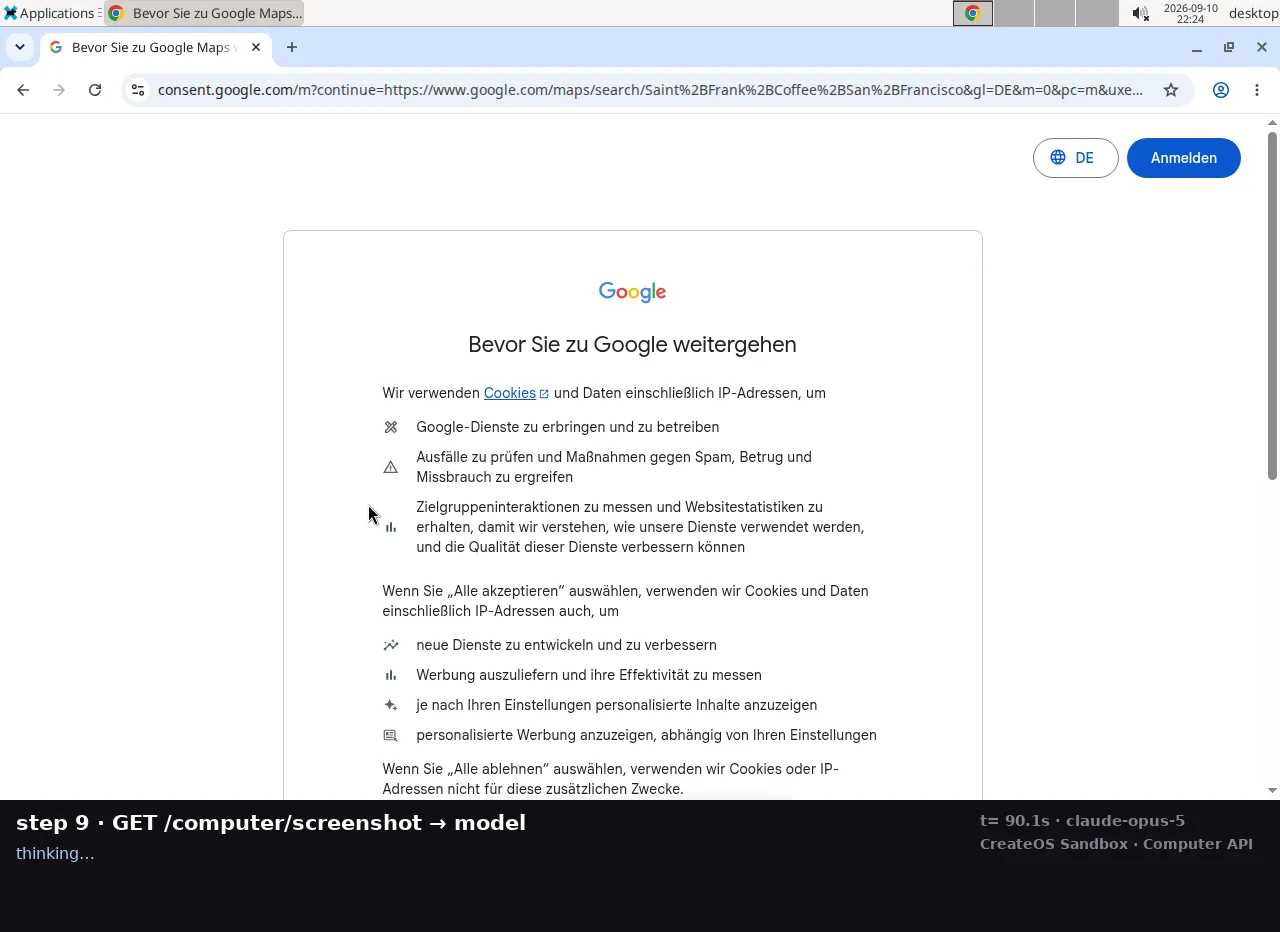
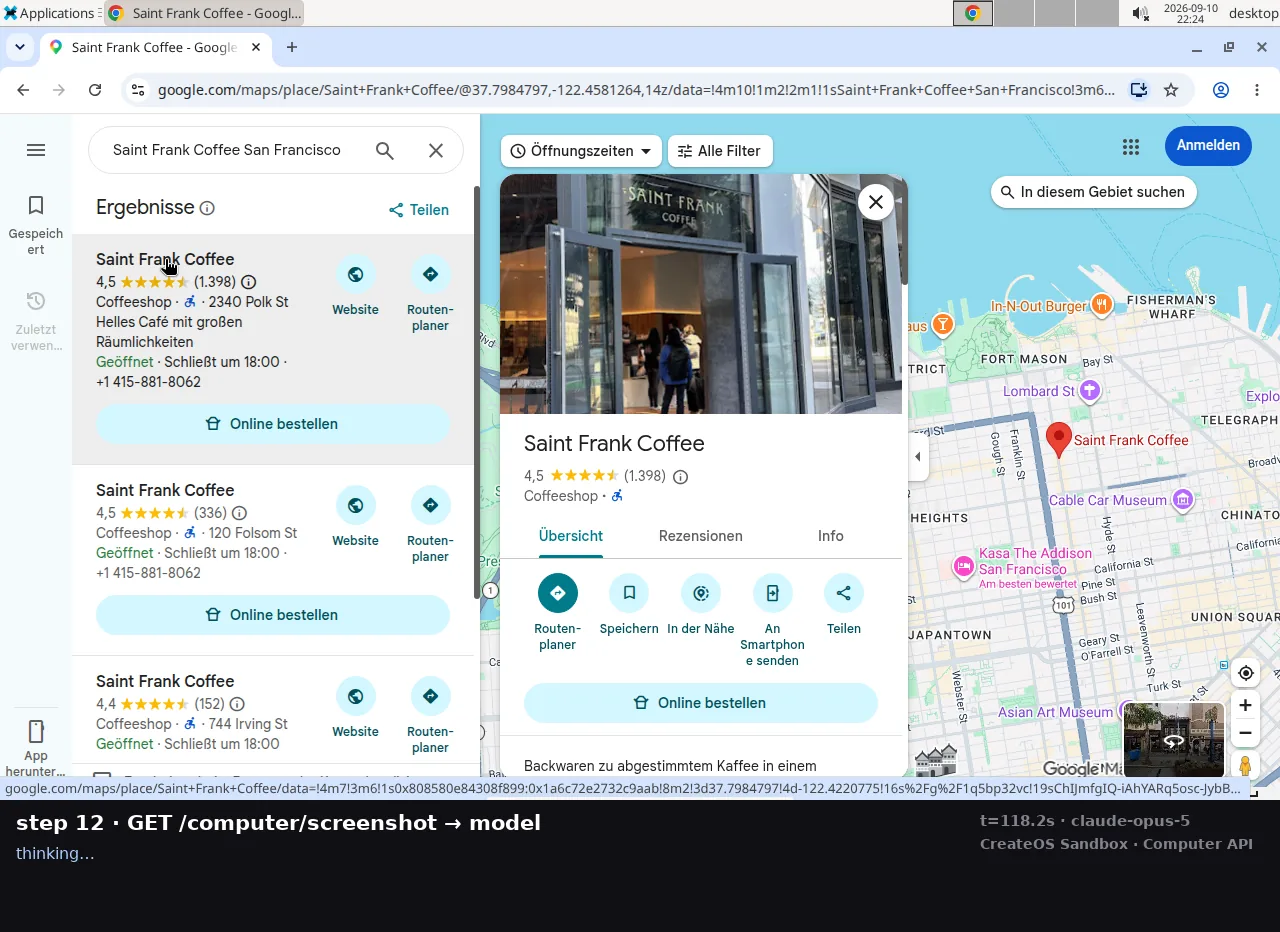
The recording below is a demonstration we made to show the loop end to end, not a product feature. We wrote a small harness (about 200 lines) that takes a screenshot through the API, sends it to Claude Opus 5, and executes whatever single action the model returns. The task we gave it was deliberately ordinary: find a first-date cafe in San Francisco. The model chose every click, keystroke and URL itself; the cafe it picked is an illustration of the loop working, not a recommendation from us.
Demonstration. Everything you see is a real screenshot pulled through
GET /computer/screenshotfrom a livedesktop:1sandbox. The bar under each frame shows the API call in flight and the model's own reasoning, captioned by the harness. Your agent, your task and your model will look different; the mechanics will not.
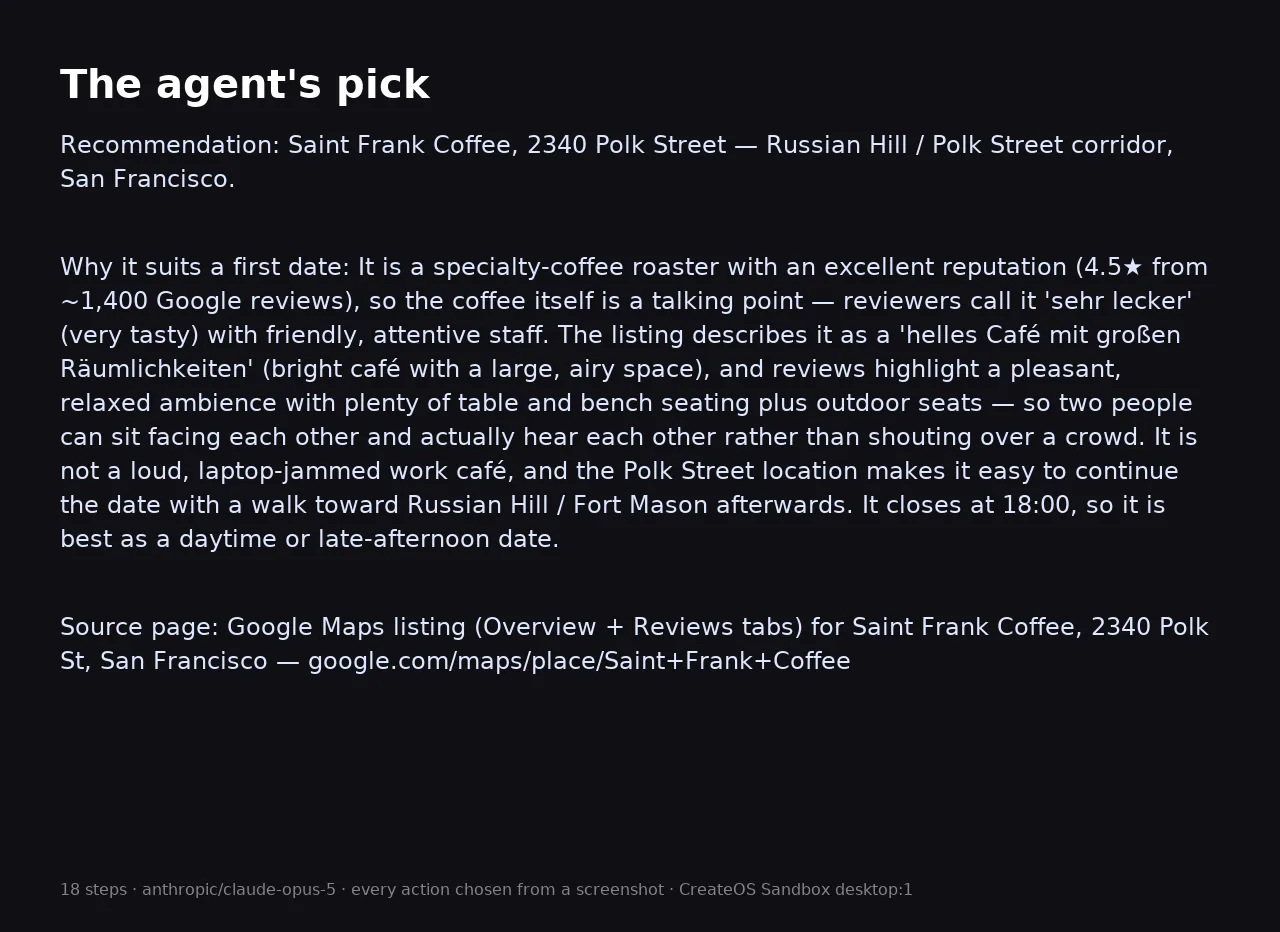
Demonstration run, recorded 2026-09-10: Claude Opus 5 driving a CreateOS Sandbox desktop through the Computer API. 18 steps, 2 minutes 54 seconds, unscripted.
The demonstration run, measured:
| Steps the model chose | 18 |
| Wall-clock, create to destroy | 174 s |
| Model cost (OpenRouter, 18 screenshot turns) | $0.31 |
| Sandbox cost (1 vCPU / 1 GB, 3 minutes) | $0.003 |
| Its pick | Saint Frank Coffee, 2340 Polk St, Russian Hill |
What it did, in its own order: opened DuckDuckGo with a query it wrote, opened a listicle and dismissed it as filler after two scrolls, searched for a specific candidate, hit a 403 on Yelp, switched to Google Maps, met a consent dialog in German because the sandbox runs in the EU, found and clicked "Alle akzeptieren", opened the listing, switched to the reviews tab, scrolled through reviews, and stopped when it had enough.
Two lessons from the demonstration runs that did not make the video.
- One tab. On the first attempt the model opened a new tab for every URL. Seven tabs on a 1 GB machine crashed Chrome's renderer and the model spent fifteen steps trying to recover. The fix was to navigate in the current tab and to tell the model why. Memory is the constraint on the smallest shape, not the model.
- Give it a baseline. Feeding the model a stale screenshot is worse than feeding it none. In one run a capture bug fed it the same pre-desktop black frame for 25 steps; it noticed, said so in its answer, and guessed a cafe from memory. Check that your screenshot loop is live before you trust the reasoning.
The adapter behind this demo is under 200 lines: a loop that screenshots, asks the model for a JSON action, and switches on the action name to call the endpoint. The action table in the previous section is that switch statement.
How do you watch the agent work?
Enable ingress on the sandbox and request a connection for the screen; you get a token-bearing URL that opens the live desktop in a browser tab. This is the human-in-the-loop path.
# Ingress is closed by default. Open it.
curl -s -X PATCH "https://api.sb.createos.sh/v1/sandboxes/$SANDBOX_ID" \
  -H "$H" -H "Content-Type: application/json" -d '{"ingress_enabled": true}'

# Mint a connection for the primary screen
curl -s "$B/screens/screen-0/connect" -H "$H"
The response contains url, token and expires_at. Treat the URL as a credential. Requesting a new connection invalidates the previous token for new sessions and leaves existing viewers connected, so you can rotate without kicking the reviewer off.
Ingress exposes exactly one HTTPS hostname per sandbox, of the form https://<sandbox-id>-<port>.app.sb.createos.sh. Nothing else in the VM is reachable from outside.
What does the agent's computer cost?
A 1 vCPU / 1 GB desktop costs about $0.067 per hour while running and nothing for compute while paused. Sandbox pricing is $0.0504 per vCPU-hour plus $0.0162 per GiB-hour, billed per second, with no egress fees.
| Shape | Per hour | 10-minute agent task |
|---|---|---|
| 1 vCPU / 1 GB | $0.067 | $0.011 |
| 2 vCPU / 4 GiB | $0.166 | $0.028 |
| 4 vCPU / 8 GiB | $0.331 | $0.055 |
Paused sandboxes are billed for storage only. A reviewer who takes an hour to approve a step costs you disk, not a running desktop. New accounts start with 500 free credits.
How do you clean up?
Destroy the sandbox when the task ends, and fork it first if you want to keep the state.
curl -s -X DELETE "https://api.sb.createos.sh/v1/sandboxes/$SANDBOX_ID" -H "$H"
DELETE is idempotent, so a retry after a timeout is safe. If the agent reached an interesting state, fork the agent's state before deleting so the next run starts there instead of from a cold desktop.
Common questions
What is a computer use agent?
A computer use agent is an AI system that operates a computer the way a person does: it takes a screenshot, decides what to click or type, sends the input, and looks again. Anthropic, OpenAI and Google all ship models that emit these actions. The model does not include the computer; you provision that.
Can a computer use agent run on my own laptop?
It can, and both Anthropic and OpenAI advise against it. The agent acts on what it sees on screen, so a malicious page can steer it toward your open sessions and files. A disposable VM per task, with an egress allowlist, is the setup the vendors' own documentation describes.
How much does it cost to give an agent a computer?
On CreateOS Sandbox a 1 vCPU / 1 GB desktop is about $0.067 per hour, billed per second; a ten-minute task is roughly a cent. Paused sandboxes pay for storage only. There is no per-sandbox minimum and 500 free credits on signup.
Does the computer API work with Claude computer use and OpenAI computer use?
Yes. Both vendors' action sets (Anthropic's computer_toolset_20260801, OpenAI's computer tool) map one-to-one onto the screenshot, mouse, keyboard and window endpoints. You write a small adapter that switches on the action name and calls the matching endpoint.
Can I see what the agent is doing in real time?
Yes. Enable ingress on the sandbox, call the screen's connect endpoint, and open the returned URL in a browser. It streams the live desktop over noVNC with a per-connection token that you can rotate without disconnecting existing viewers.
How do I get started?
Sign up, create an API key, and send the create call above with rootfs: "desktop:1" and shape: "s-1vcpu-1gb". A desktop is ready in about four seconds. The Computer API reference lists every endpoint; the TypeScript SDK exposes the same surface as sandbox.computer.
About CreateOS
CreateOS is the unified AI execution layer for the enterprise — route, govern, validate, observe. It runs agent workloads in Firecracker/KVM micro-VM sandboxes with fork, pause-resume, VPC and S3-backed disks, with kernel-level egress control via eBPF, and can run entirely inside a customer's own boundary. Built by the team at NodeOps.
Next step
If you are putting a computer use agent in front of real systems, talk to our team about egress policy and approval gates for your workflow. If you want to try it first, start with what an AI agent sandbox is, then boot a desktop:1 sandbox from the Computer API reference.