

Tools
The vocabulary
| Term | Meaning |
|---|---|
| Toolkit | A connected app: Gmail, Slack, Notion, Salesforce and so on. |
| Action | One thing that toolkit can do, such as "send email" or "create page". |
| Account | Your login to that app, connected once and reusable across agents. |
| Binding | The link between one agent and one account. |
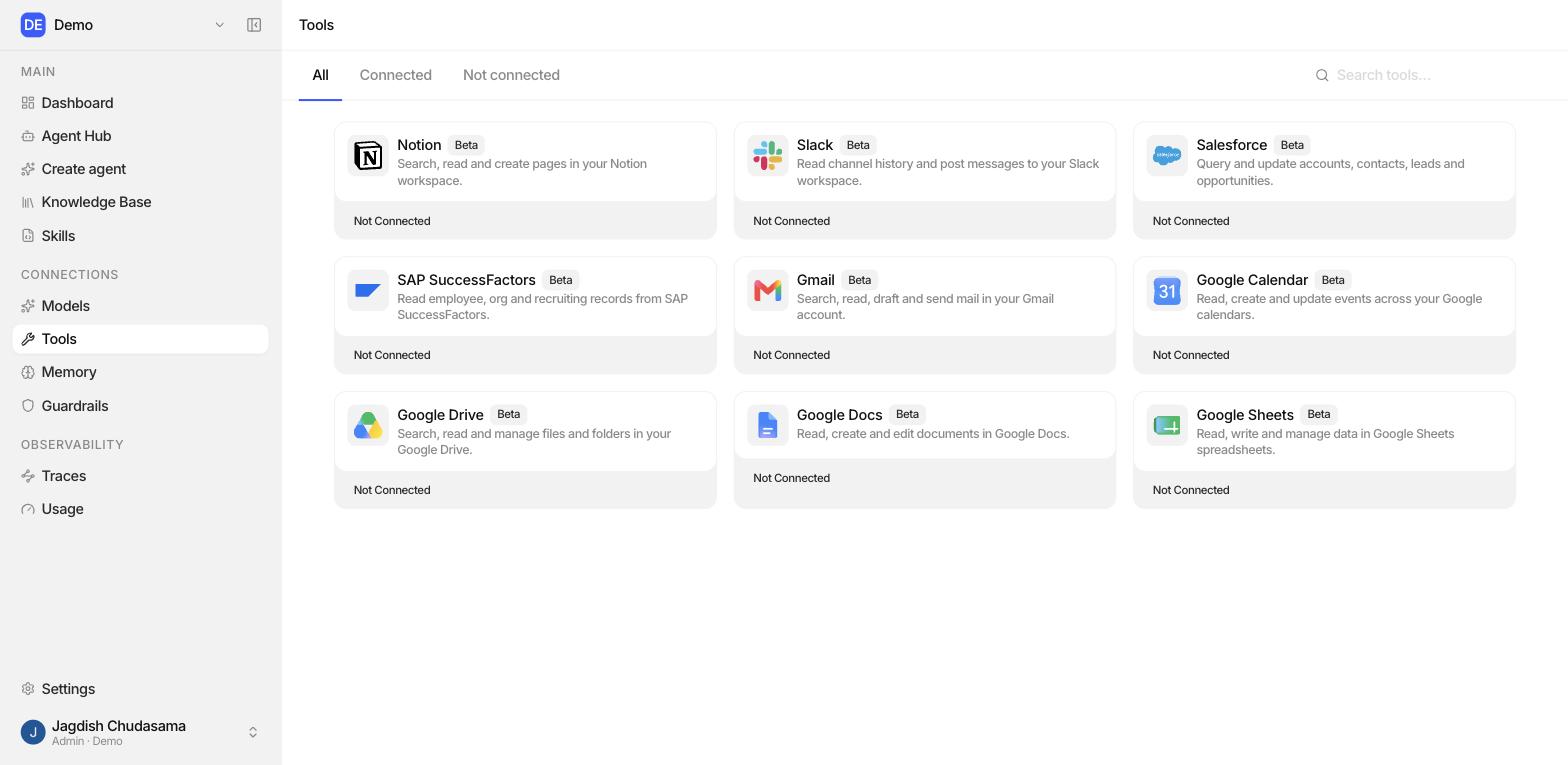
Available toolkits
| Toolkit | Typical use |
|---|---|
| Gmail | Read, search, draft and send email |
| Google Calendar | Read availability, create events |
| Google Drive | Find and read files |
| Google Docs | Create and edit documents |
| Google Sheets | Read and write spreadsheet data |
| Slack | Post messages, read channels |
| Notion | Search, read and create pages |
| Salesforce | Read and update CRM records |
| SAP SuccessFactors | Read HR data |
Connect an app
- Sidebar → Tools.
- Pick a toolkit and click Connect.
- You are sent to the provider's sign-in page. Log in and approve.
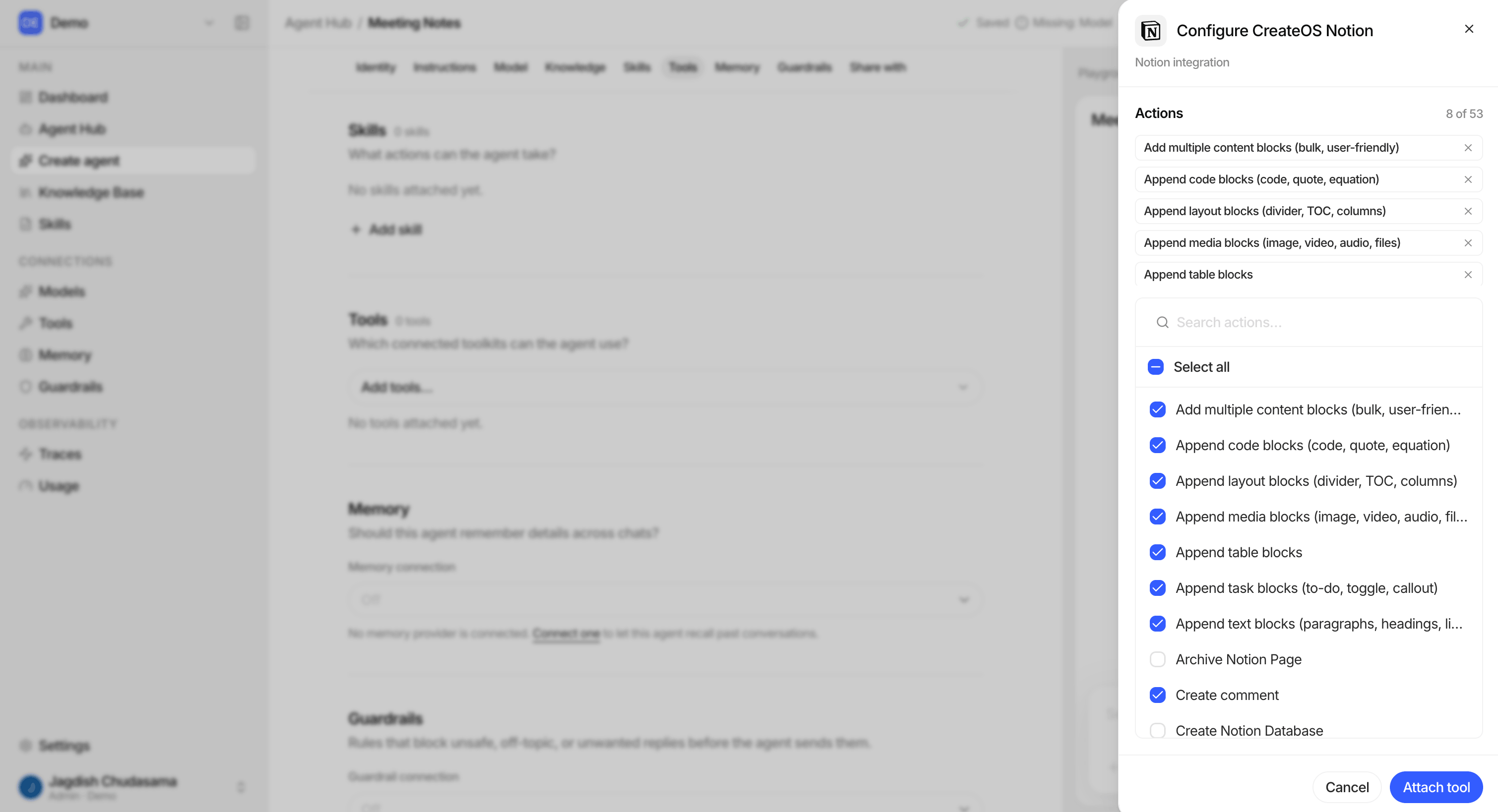
- Back in Studio, choose which actions this account exposes.
- Give the account a label (e.g. "Support inbox") and save.
Choosing actions
Only the actions you tick can ever be used. This is the narrowest and most important control you have.
The action list is frozen at connect time. If the provider adds a new action next month, it does not silently join an account that was configured before it existed. To pick up new actions, re-open the account and save again.
Attach a toolkit to an agent
- Agent Builder → Tools section.
- Add tool → pick a toolkit → pick which of your accounts to use.
Whose account does the agent use?
This is the most important decision on this page. Each toolkit on an agent has one of two modes.
| Mode | Whose account is used | Use when |
|---|---|---|
| Sign in individually (default) | The account of whoever is running the agent. | Personal assistants. Each person's agent touches only their own inbox, calendar or workspace. |
| Shared | One bound account, for every runner. | Team mailboxes, service accounts, a shared Slack bot. |
What "shared" really means
Because of that:
- Setting a toolkit to Shared requires Editor on the agent.
- Binding your own personal account requires only Viewer.
- The mode change gets its own audit row, separate from the account change.
Defaulting to Sign in individually is deliberate. It is the safe direction. A binding that arrives without a mode isolates the credential rather than sharing it.
What the agent can do, precisely
An agent's reach through a tool is the intersection of:
- the actions ticked on the account, and
- what the provider allows that account to do.
Two agents bound to the same account have the same reach. If you want two agents with different reach, connect the app twice with different action sets.
Disconnecting
Disconnect an account from the Tools page. Studio removes its record and asks the provider to revoke the grant. Any agent bound to it stops being able to use that toolkit.
What gets recorded
| Event | Recorded in |
|---|---|
| Connecting an account | Audit logs |
| Changing exposed actions | Audit logs |
| Disconnecting | Audit logs |
| Binding an account to an agent | Audit logs |
| Changing shared / individual mode | Audit logs, as its own row |
| Each individual tool call in a run | Audit traces, with arguments, result and duration |
Safety checklist before going live
- Only the necessary actions are ticked
- Write actions (send, delete, update) are genuinely needed
- The mode is Sign in individually unless a shared account is intended
- The agent is shared with the smallest sensible group
- A Guardrails connection is attached
- The instructions tell the agent to ask before any irreversible action
- You have run it in the Sandbox against a test account first