

Agent Sandbox
Two places you will find it
| Where | Use it for | Who sees it |
|---|---|---|
| Playground, the right pane of the Agent Builder | Testing changes as you make them, before publishing | People who can edit the agent |
| Agent Hub run view, at Agent Hub → open an agent → Run | Day-to-day use of a published agent | Anyone the agent is shared with |
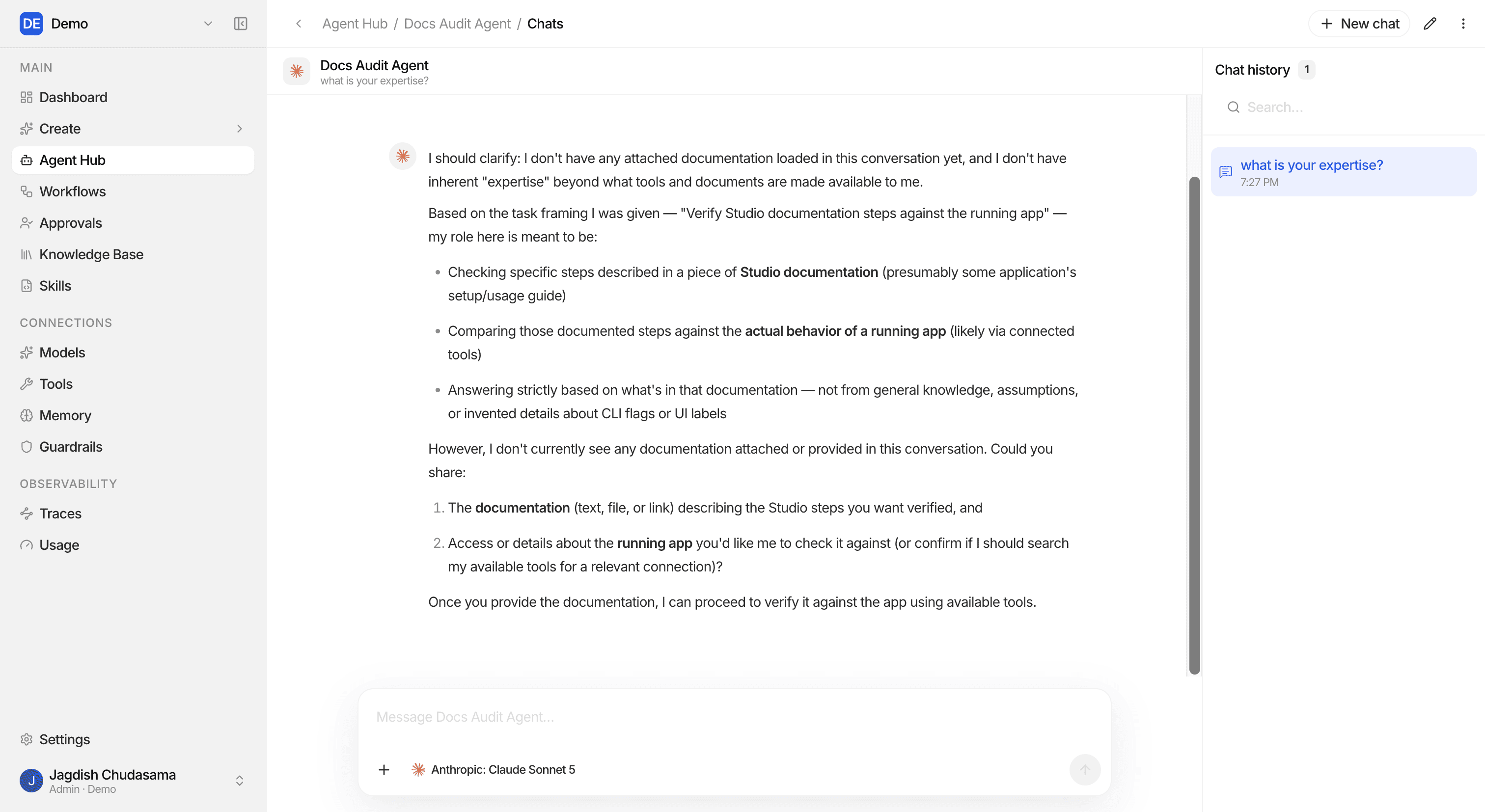
Sessions and runs
- A session is one conversation. It keeps its history, so the agent remembers what was said earlier in the same session.
- A run is one turn inside that session: your message, and the agent's answer.
In the run view, the left sidebar lists your sessions. You can:
- New session. Start a clean conversation.
- Rename. Give a session a meaningful title.
- Delete. Remove it.
- Search. Find an old session.
What you can do during a run
| Action | What happens |
|---|---|
| Send a message | The agent starts a run. The answer streams in word by word. |
| Queue a follow-up | Type while it is still working; your message is sent when the current run finishes. |
| Stop | Cancels the run immediately. |
| Answer a question | The agent can pause and ask you something. Pick an option or type a reply, and it continues. |
| Copy | Copy any message. |
| Clear playground (builder only) | Clears the Playground conversation. |
Human-in-the-loop
When an agent needs your approval or a missing detail, the run pauses in an Awaiting input state and shows you a prompt. The run is durable. It survives a page refresh, and it stays paused until you answer.
Run states
| State | Meaning |
|---|---|
| Running | The agent is working. |
| Awaiting input | Paused, waiting for a human answer. |
| Succeeded | Finished, answer delivered. |
| Failed | Something went wrong. The reason is shown, and the full detail is in the trace. |
| Cancelled | You stopped it. |
What the agent brings to each run
When a run starts, Studio takes a snapshot of the agent's configuration and freezes it for that run:
- the model and its settings
- the knowledge bases attached
- the tools available, and whose account they use
- the guardrail and which side it checks
- the memory connection
This is why a trace from last month still tells you exactly what the agent could do at the time, even if the agent has been edited since.
Output formats
What the sandbox shows depends on the agent's output format.
| Format | Shown as | Good for |
|---|---|---|
| Text | Formatted rich text | Chat, drafting, summaries |
| JSON | A code block matching your schema | Feeding another system |
| Image | An image | Generated visuals |
| File | A downloadable file | Reports, exports |
When something looks wrong
| Symptom | Check |
|---|---|
| "Model could not be resolved" | The provider connection in Models, and that the chosen model is on the allowlist. |
| Agent ignores your documents | Documents are Ready (not Processing/Failed), and the knowledge base is attached. |
| A tool never runs | The tool account is connected, the action is ticked, and the agent is bound to an account. |
| Message blocked | A guardrail matched. The trace shows which stage and why. |
| Answer is inconsistent | Tighten the instructions; add a skill with the rules. |
To see exactly what happened, open Audit traces.
Running an agent from your own app
The sandbox is a client over a public HTTP runtime. You can drive the same thing from your own product: start a turn, stream the events, answer input requests, cancel.
See Sandbox SDK.