

Publish to Slack
Slack is the first messaging channel. Each agent can have one Slack connection, and you bring your own Slack app, which Studio helps you create from a ready-made manifest.
Before you begin
- The agent is published (Active)
- You have Editor on the agent
- You can create and install apps in your Slack workspace, or have someone who can
Set it up
Open the agent and click Publish to Slack. It is under the agent's name, on the empty chat, and in the agent's Share dialog. A three-step wizard follows. You can leave part way and resume.
Step 1. Bot name
The name people will see in Slack. Studio suggests one from the agent's name. Up to 35 characters; shorter reads better.
Step 2. Create the Slack app
Studio generates a Slack app manifest for you.
- Copy the manifest.
- Go to api.slack.com/apps → Create New App → From a manifest.
- Pick your workspace, paste the manifest, create the app.
- Install it to the workspace.
The manifest already sets the events Studio listens for and the permissions it needs. The wizard lists every permission and why.
The permissions the bot asks for
| Scope | Why |
|---|---|
app_mentions:read | Notice when someone @mentions the bot |
chat:write | Post replies |
reactions:write | Add the 👀 "working on it" reaction |
im:history | Read direct messages to the bot |
channels:history, groups:history | Read the thread for context before replying |
channels:read, groups:read | List channels in the channel picker |
channels:join, channels:manage, groups:write | Join and leave the channels you choose |
users:read | Show people's names to the agent |
Step 3. Paste the credentials
From the Slack app's settings, paste:
- the Bot User OAuth Token (starts with
xoxb-), and - the Signing Secret (under Basic Information). Not the Client Secret.
Studio checks the token with Slack, confirms every required permission is granted, and stores both encrypted. They are never shown again.
Choose where it listens
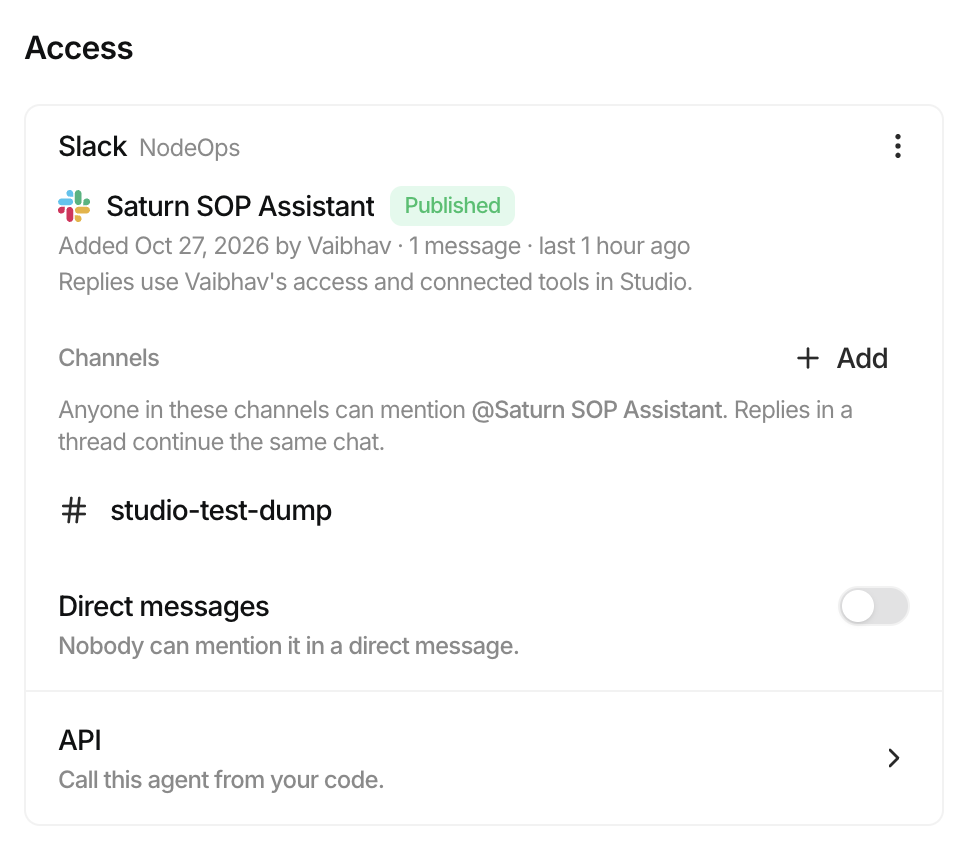
After connecting, the agent's page shows an Access section with the Slack bot.
| Setting | Effect |
|---|---|
| Channels | Pick channels from the list. The bot joins public channels automatically. For a private channel, invite the bot in Slack first. Removing a channel makes the bot leave it. |
| Direct messages | Off by default. When on, anyone in the workspace can DM the bot. |
How it behaves in Slack
- It only answers when @mentioned. In channels and in DMs alike. Other messages in a thread are read as context, never answered.
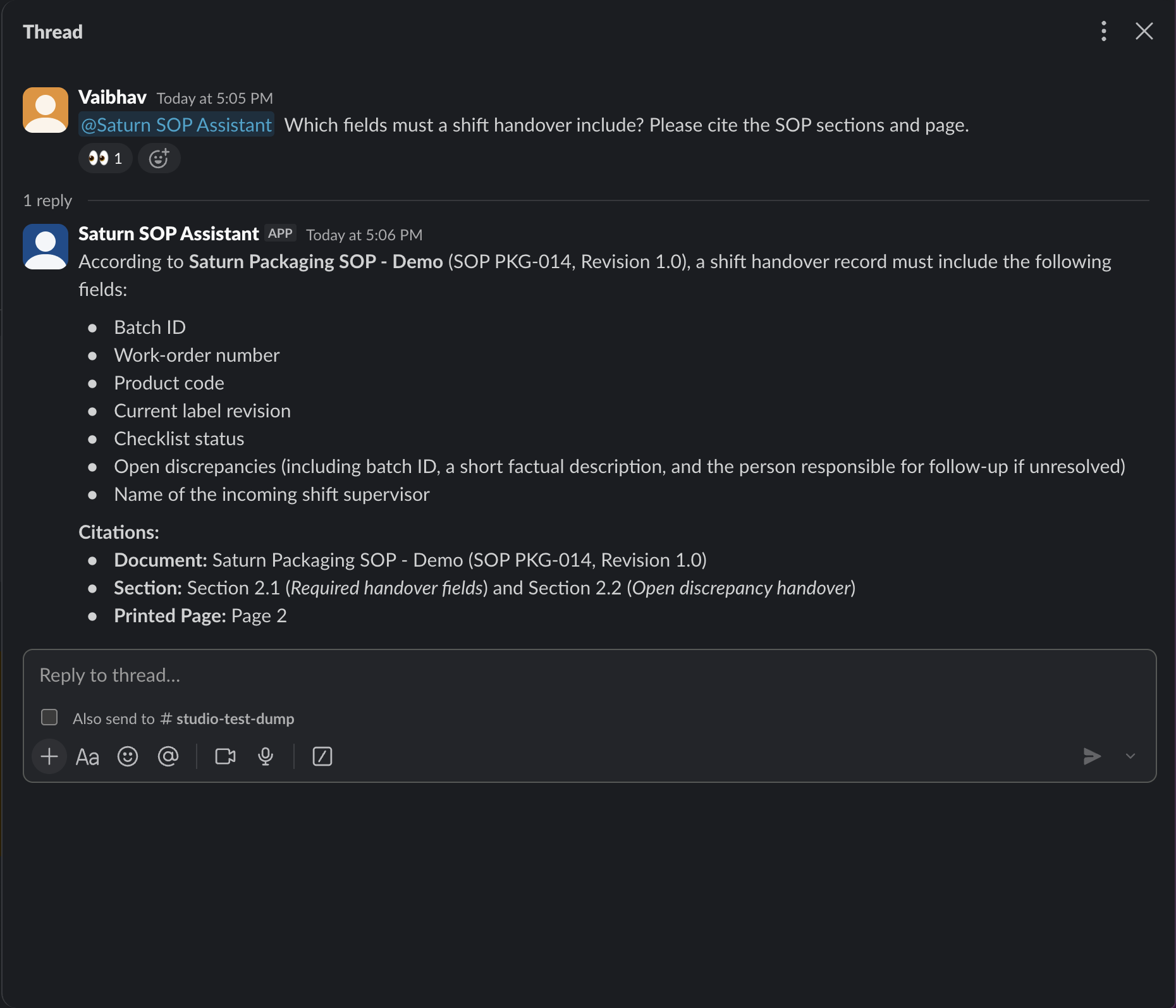
- It reacts with 👀 straight away, then replies in the thread.
- One Slack thread = one Studio session. Each mention in the thread is a new run in that session, so it remembers the thread. A new top-level mention starts a new session.
- Before replying it reads the thread up to the mention, with who said what. It can tag people back when you ask it to.
- Markdown is converted to Slack formatting. Very long replies are cut at about 39,000 characters.
- Files and attachments posted in Slack are not read.
When it cannot answer
| Bot says | Why |
|---|---|
| "This agent is busy. Please try again shortly." | The connection hit its per-minute run limit. |
| "The agent could not complete this request. Check its trace in Studio." | The run failed. Open Audit traces. |
| "This run needs input in Studio before it can continue." | The agent asked a human-in-the-loop question. Answer it in Studio; it cannot be answered in Slack. |
A paused or archived agent does not reply in Slack.
Whose access does it use?
- Access is re-checked on every message. If the connecting person leaves the organization or loses access to the agent, the bot shows Needs reconnect and stops replying.
- If someone else reconnects it, replies switch to their access. Conversation history is kept.
- Uninstalling the app or revoking its token in Slack also shows Needs reconnect.
Reconnect or disconnect
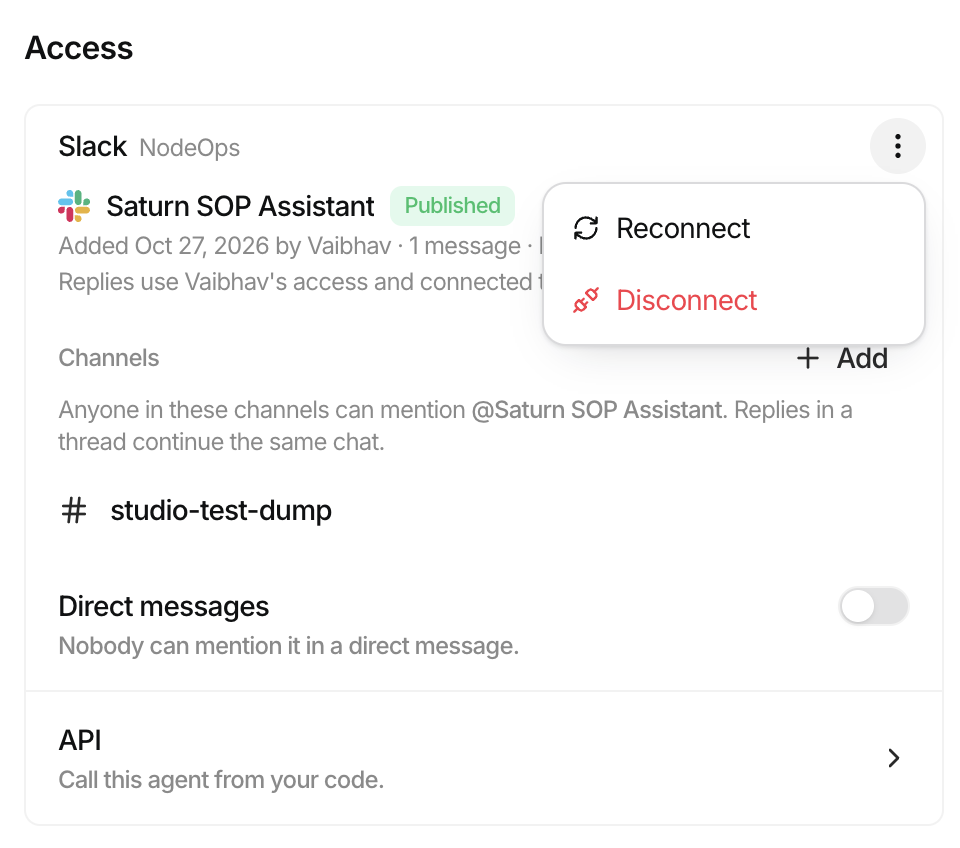
From the Access section menu:
- Reconnect re-enters credentials. It must be the same Slack app; to switch apps, disconnect first.
- Disconnect revokes the bot token. The Slack app itself is not deleted; remove it in Slack if you no longer need it.
One Slack app can be connected to only one agent.
Limits and reliability
| Value | |
|---|---|
| Runs per connection | Same per-minute limit as API keys (default 60) |
| Messages posted | 1 per second per channel |
| Thread context read | Up to 100,000 characters |
| Retries | Up to 5, with back-off. Messages in one conversation are handled in order. |
Delivery is at least once, so after a crash the bot may very occasionally reply twice.
Safety checklist
- The agent's tools use the narrowest actions possible, since anyone in the channel can trigger them
- A Guardrails connection is attached
- Channels are limited to the teams that need the bot
- DMs stay off unless there is a reason
- The person connecting the bot is the right owner for its access, ideally a dedicated service member