

Building a workflow
Step 1. Create it
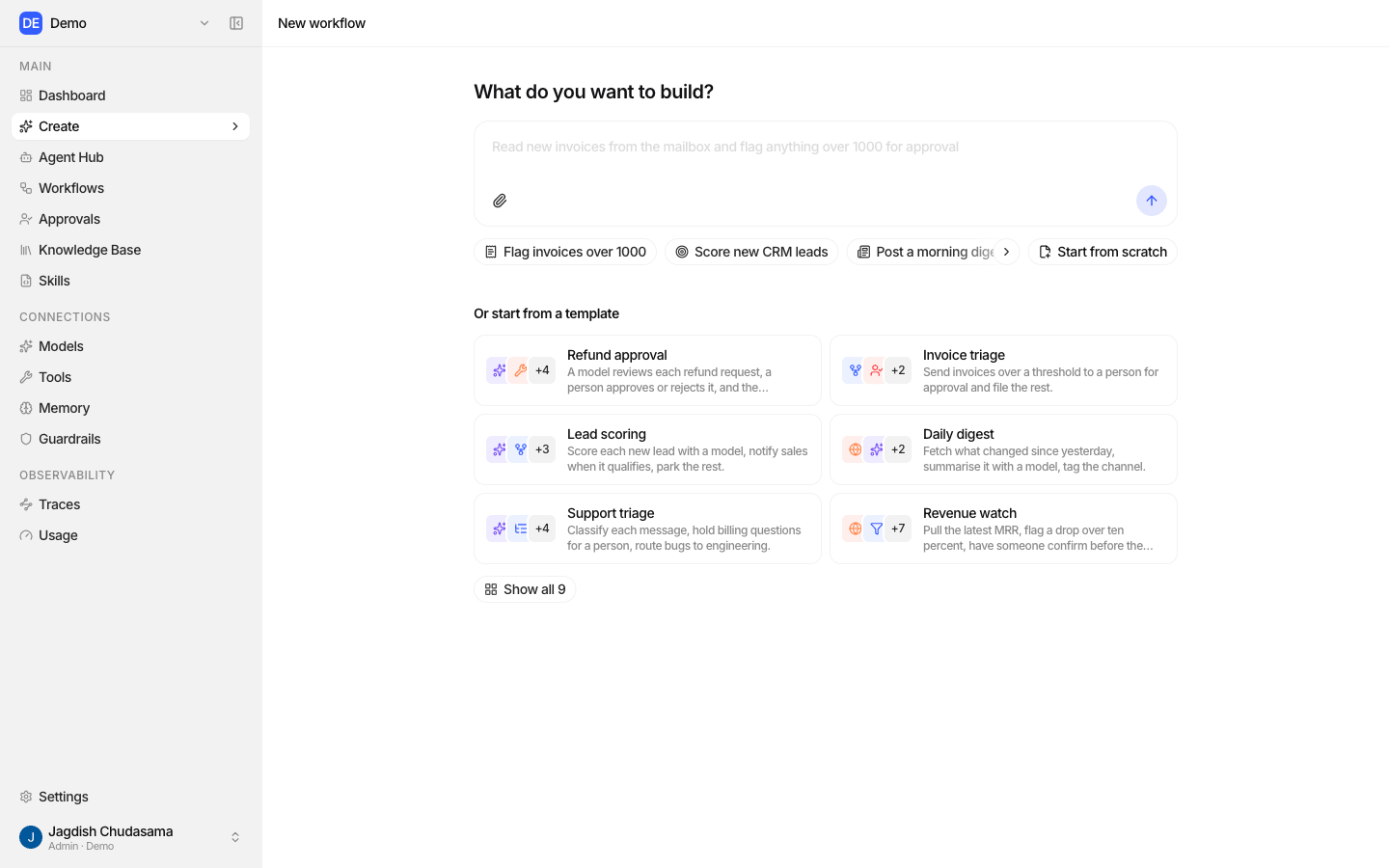
Sidebar → Create → New workflow. The page asks "What do you want to build?" and gives you three ways in.
| Start | What happens |
|---|---|
| Describe it | Type what you want, e.g. "Flag invoices over 1000". Studio creates the workflow, opens the builder and hands your description to the Workflow assistant, which drafts the steps. |
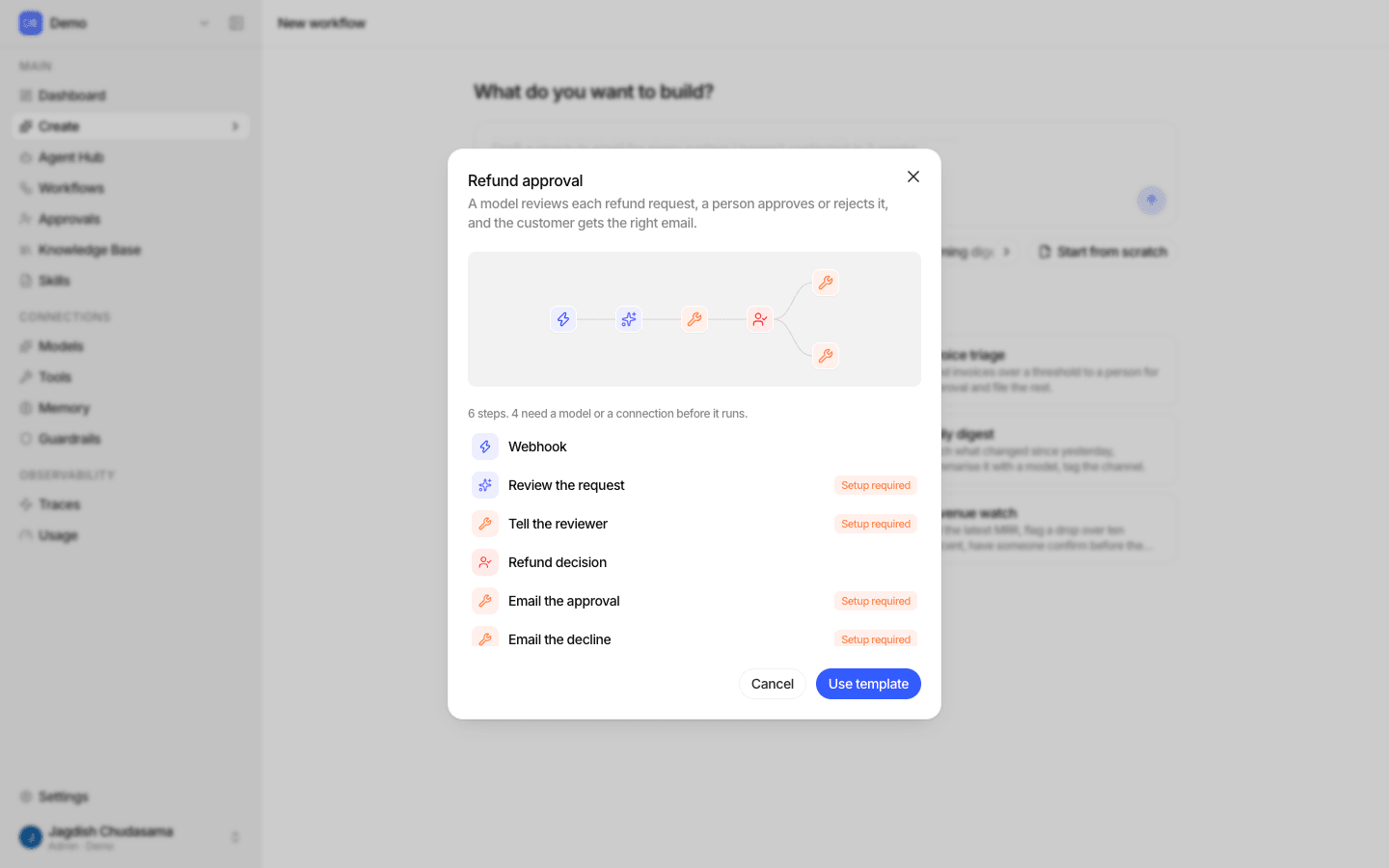
| Pick a template | Preview it, then start from a working example. Steps that need a model or app account are marked Setup required. |
| Start from scratch | An empty canvas named "Untitled workflow". |
Templates
| Template | Area |
|---|---|
| Refund approval | Support |
| Invoice triage | Finance |
| Lead scoring | Sales |
| Daily digest | Operations |
| Support triage | Support |
| Revenue watch | Finance |
| Incident escalation | Operations |
| Accounts payable, end to end | Finance (uses every kind of step, a good tour) |
| Meeting scheduling | Operations |
Step 2. The builder
| Area | What is there |
|---|---|
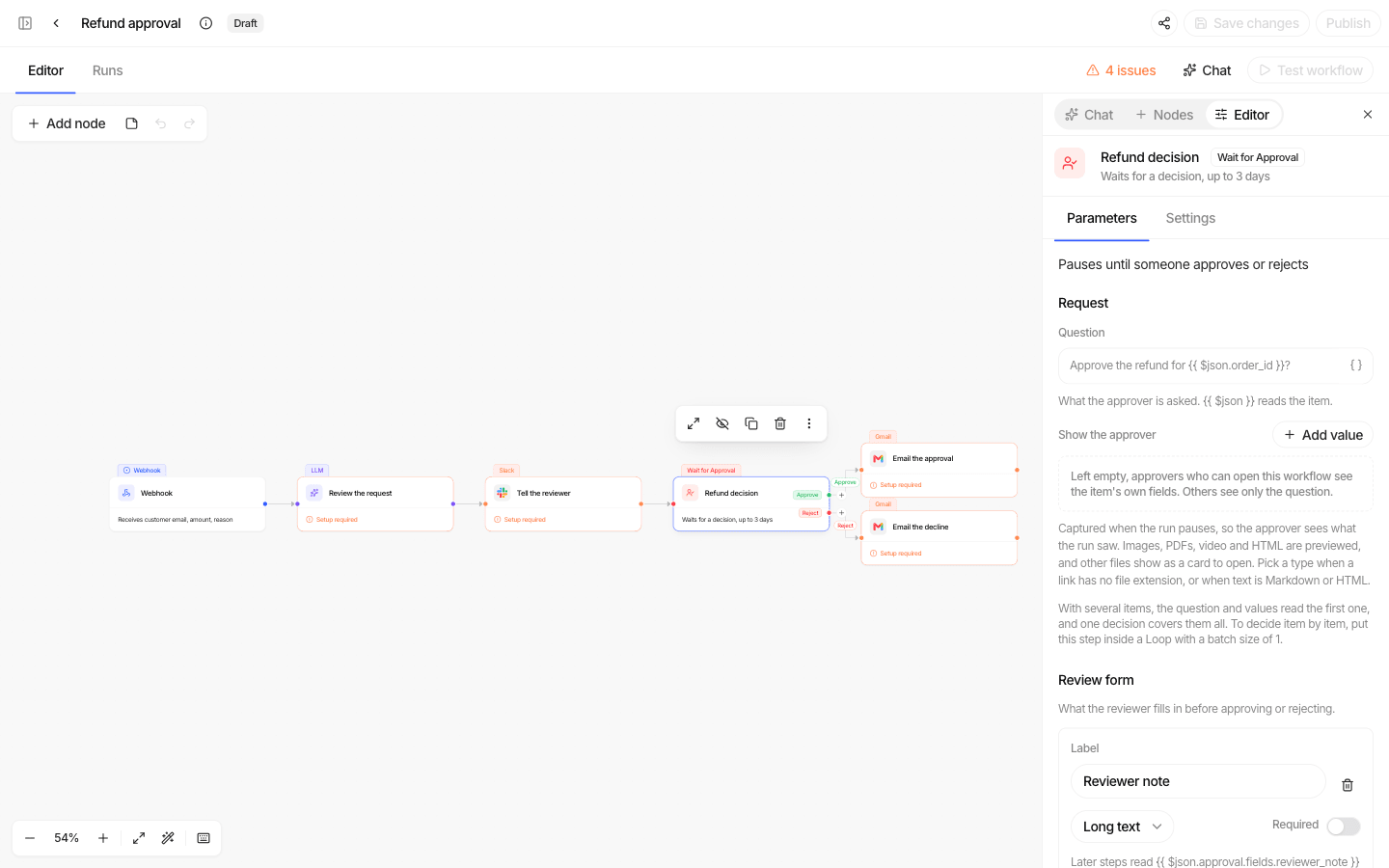
| Top bar | Name and description, status badge, Unsaved changes indicator, Share, Save changes, Publish, Editor / Runs view, Chat toggle, and the Test / Run button. |
| Canvas | Your steps and the connections between them. Zoom, fit, Tidy up, sticky notes, undo and redo. |
| Right rail | Three tabs: Chat (the assistant), Nodes (the step picker), Editor (the selected step's Parameters, Settings and Notes). |
| Logs drawer | Each step's input and output items for the last run or test. |
| Runs view | This workflow's runs, filtered by All / Waiting / Failed / Completed. |
Adding and connecting steps
- Press Tab (or open the Nodes tab) and pick a step. 👉 Step reference
- Drag from a step's output dot to the next step's input to connect them.
- Select a step to configure it in the Editor tab.
Right-click a step to open, rename, skip, replace, copy, duplicate or delete it.
Keyboard shortcuts
| Keys | Does |
|---|---|
⌘ S | Save |
Tab | Add a step |
Enter | Open the selected step |
⌘ Z / ⇧ ⌘ Z | Undo / redo |
⌘ C / ⌘ V / ⌘ D | Copy / paste / duplicate |
⌘ A | Select all |
Delete | Delete the selection |
? | Show all shortcuts |
Step 3. Save
There is no autosave. Click Save changes or press ⌘ S. Studio warns you
if you try to leave with unsaved changes.
- Saving accepts a half-built workflow. You can save as often as you like.
- If someone else saved the same workflow in the meantime, you are asked to reload rather than overwrite their work.
Step 4. Test
While the workflow is a draft, or the canvas differs from the published version, the button reads Test workflow.
To test real model and app behaviour, publish and run it against test data or test accounts.
Step 5. Publish
Click Publish. Studio checks the whole workflow first and refuses with a list of problems if anything is wrong, such as an unconnected required input, a missing model, or an error port with nothing wired to it.
Publishing:
- freezes a new numbered version (moving boxes around does not count as a change),
- moves a Draft to Active,
- turns on the workflow's Schedule steps,
- binds any Tool step accounts to you as the publisher.
Once published and unchanged, the button reads Run workflow and runs the live version for real. 👉 Running and monitoring
Settings for the whole workflow
| Setting | Options | Default |
|---|---|---|
| On error | Stop the run, or continue with other branches | Stop |
| Execution timeout | 1 second to 24 hours of active time. Time spent waiting on an approval or a Wait step does not count. | 1 hour |
Settings on every step
Open a step → Settings.
| Setting | Effect |
|---|---|
| Skip this node | The step is skipped, and so is anything that depends only on it. Handy while building. |
| Run once for the whole stream | Runs on the first item only; the other items pass straight through. |
| Retry on fail | 2 to 10 tries (default 3), with 0 to 30 seconds between tries (default 1 s). |
| On error | Fail the step, or send the failure out of a separate error output you wire to something (a notification, a fallback). |
| Notes | Free text for whoever edits it next. |
Delete
Admins on the workflow can delete it from the menu. Deletion is refused while a run is still running or waiting for an approval; cancel those first.