

Approvals
Loading diagram...
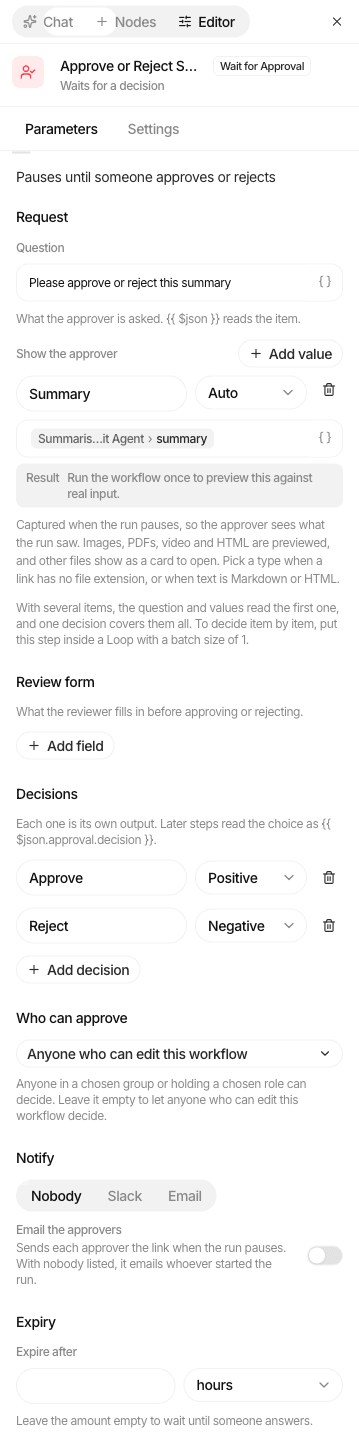
Configure the step
| Setting | What it does |
|---|---|
| Title ✱ | What the approver sees, e.g. Refund {{ $json.amount }} for {{ $json.customer }}. Up to 200 characters. |
| Approvers | Up to 50 people, 20 groups and 20 roles. Anyone matching any of them may answer. Left empty, anyone with Editor on the workflow may answer. |
| Show | Up to 20 pieces of context for the approver, each a label and a value ✱. Display as text, markdown, a link, an image, a PDF, video, audio, a file, a table or JSON. |
| Fields | Up to 20 things the approver fills in: text, long text, number, yes/no or a dropdown. A field can be required always, or only for certain decisions (e.g. a reason only when rejecting). |
| Decisions | 1 to 6 buttons. Default Approve and Reject. Each decision is its own output on the canvas. |
| Expires after | Minutes, hours or days. Empty means wait indefinitely. |
| On expiry | Fail the step (default), or send items out a Timed out output. |
| Notify | How approvers hear about it. See below. |
What comes out
After a decision every item carries:
{
  "approval": {
    "decision": "approved",
    "fields": { "reason": "Within policy" },
    "answeredBy": "0192…",
    "answeredAt": "2026-10-26T10:04:00.000Z"
  }
}
Read it later as {{ $json.approval.fields.reason }}.
Notifications
| Channel | How it works |
|---|---|
| Email approvers | Each approver gets an email, Approval needed: <title>, with a link. They sign in to decide. If no approvers are named, the person who ran the workflow is emailed. |
| Email addresses | Up to 20 extra addresses, comma separated. |
| Slack channel | Posts to a channel such as #refunds with a Review and answer link, through the run owner's connected Slack account in Tools. |
| App actions | Up to 5 extra Tool actions, e.g. create a ticket. Use {{ $approval.url }} in their arguments for the review link. |
A failed notification never fails the run; the approval keeps waiting on the Approvals page. Email needs your Studio operator to have configured outgoing mail.
The Approvals page
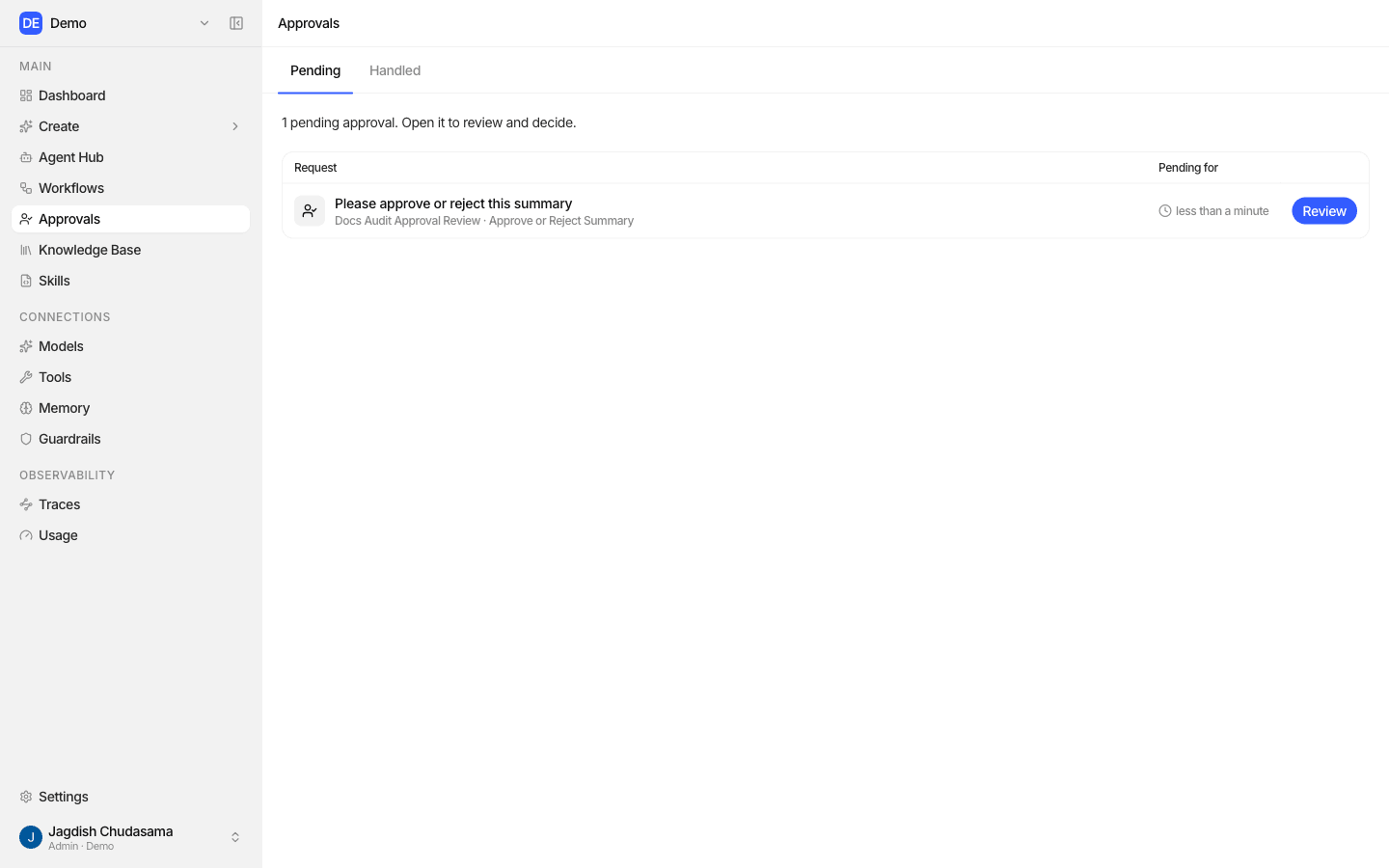
Sidebar → Approvals.
| Tab | Shows |
|---|---|
| Pending | Decisions waiting for you |
| Handled | Decided and expired approvals, newest first |
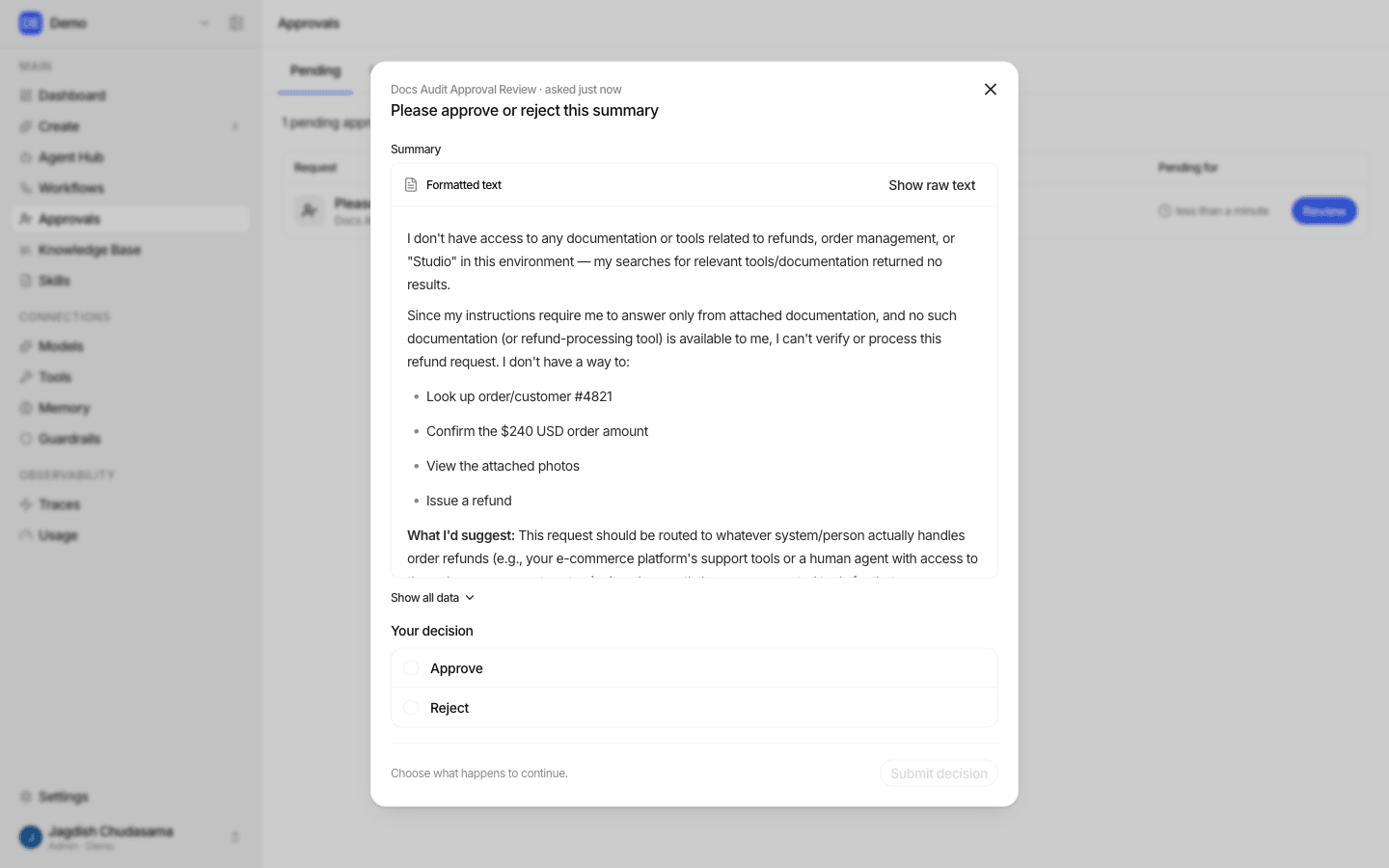
Open one to see the request, the run's input, everything listed under Show, and a recommendation when an earlier AI step suggested approve or reject. Fill in the fields, choose a decision, and Submit decision. Before you submit, Studio previews the steps each decision would lead to.
Rules
- Approvers are checked when they answer, against current membership, groups and roles. Someone added to the group after the run started can answer; someone removed cannot.
- An approver does not need access to the workflow itself.
- The first answer wins. Submitting the same answer twice is harmless; a different answer after that is refused.
Expiry
With Expires after set and nobody answering in time:
- Fail: the step fails with "Nobody answered this approval before it expired."
- Timed out: items leave through the Timed out output, so you can escalate or apply a default.
Time spent waiting does not count towards the workflow's execution timeout.
What gets recorded
| Event | Recorded in |
|---|---|
| The decision, who made it and the fields | The run's trace, and Audit logs |
| Each notification and whether it was delivered | The run's trace |
Good practice
- Name approvers by group or role, not individuals, so holidays do not block runs
- Put the evidence in Show (the document, the amount, the AI's reasoning) so approvers do not have to go digging
- Require a reason field for Reject
- Set an expiry and route Timed out somewhere visible
- Wire every decision output to something, even just a notification